> ## Documentation Index
> Fetch the complete documentation index at: https://seam-feat-mintlify-migration-iteration.mintlify.site/llms.txt
> Use this file to discover all available pages before exploring further.

# Seam Bridge Setup for macOS

> Step-by-step instructions for installing, launching, and configuring Seam Bridge on macOS.

### System Requirements

* **Supported versions:**
  * macOS 10.13 High Sierra or later
  * Intel and Apple Silicon supported
* **Minimum hardware**
  * 1 GB RAM
  * \~200–300 MB disk space depending on bundle size
* **Network:** LAN connection required

***

## Run Seam Bridge

### Unzip and launch the app

1. Double click on the zipped file to unzip the file.
2. Try opening the SeamBridge.app by double-clicking it.
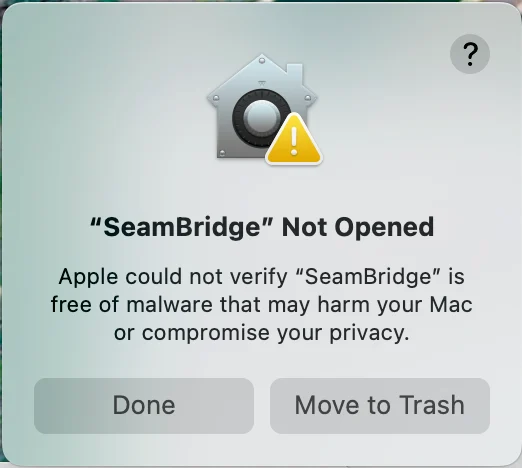
3. macOS will show a *“Seam Bridge" Not Opened* dialog.\\
   <img src="https://mintcdn.com/seam-feat-mintlify-migration-iteration/MU-U4st1irZ_azGh/images/Screenshot-2025-11-13-at-11.00.32-AM.png?fit=max&auto=format&n=MU-U4st1irZ_azGh&q=85&s=bb0f7e4ca927281cd74ed773b802b16f" alt="" width="522" height="468" data-path="images/Screenshot-2025-11-13-at-11.00.32-AM.png" />
4. Select **Done** to close the dialog.

### Approve the app in System Settings

1. Open **System Settings**.
2. Go to **Privacy & Security**.
3. Scroll to the bottom of the page.
4. Look for a message that says:
   * *“Seam Bridge was blocked to protect your Mac.”*
5. Select **Open Anyway**.
6. Select **Open Anyway** in the popup.
<div>
  <figure>
    <img src="https://mintcdn.com/seam-feat-mintlify-migration-iteration/MU-U4st1irZ_azGh/images/Screenshot-2025-11-13-at-10.58.26-AM.png?fit=max&auto=format&n=MU-U4st1irZ_azGh&q=85&s=0daa488850fc587872a51cb06ebea4ae" alt="" width="1432" height="1270" data-path="images/Screenshot-2025-11-13-at-10.58.26-AM.png" />

    <figcaption />
  </figure>

  {' '}

  <figure>
    <img src="https://mintcdn.com/seam-feat-mintlify-migration-iteration/MU-U4st1irZ_azGh/images/Screenshot-2025-11-13-at-11.05.05-AM.png?fit=max&auto=format&n=MU-U4st1irZ_azGh&q=85&s=20e2f60fd7d00c9224b08e27179d0b36" alt="" width="1436" height="1270" data-path="images/Screenshot-2025-11-13-at-11.05.05-AM.png" />

    <figcaption />
  </figure>
</div>

***

### Complete Seam Bridge setup

1. Accept the **Terms of Service.**

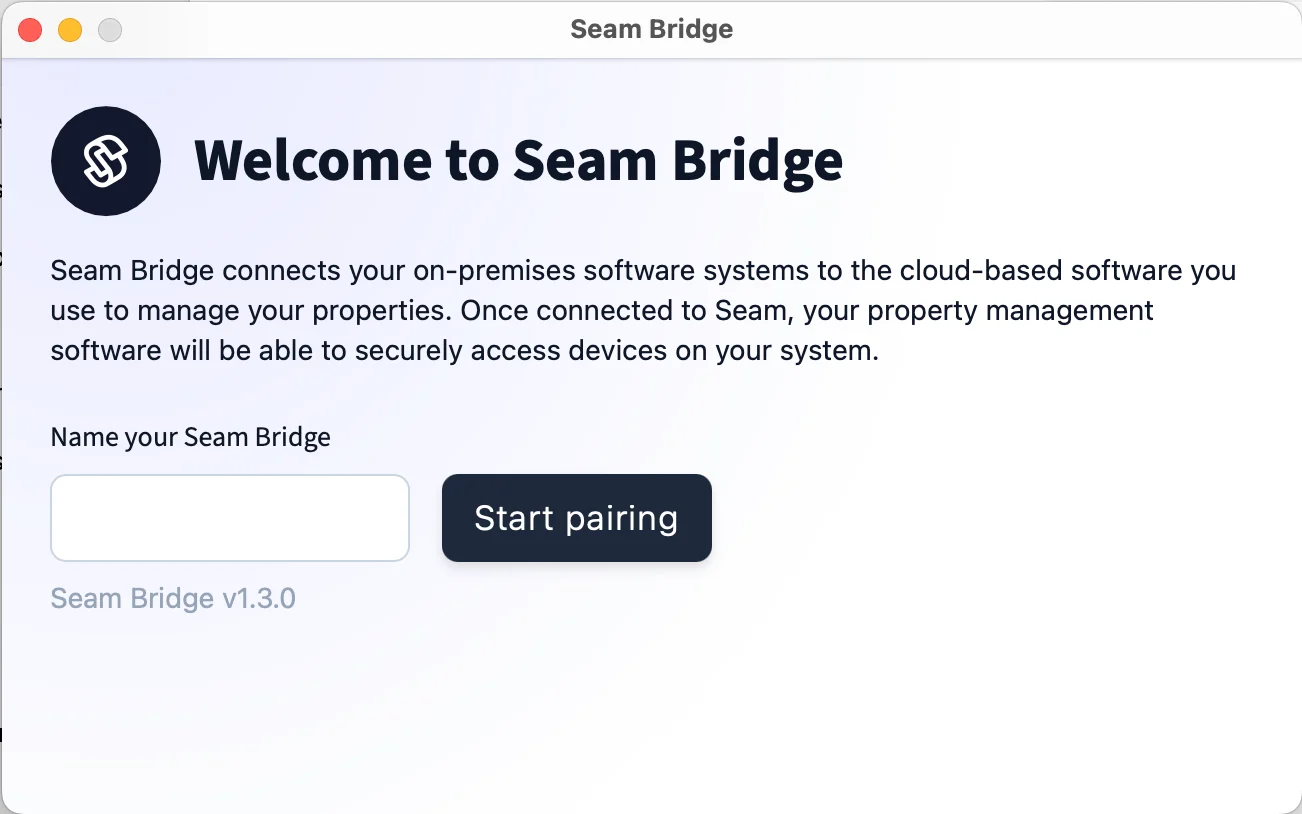
2. Enter a name for the site that you are connecting using Seam Bridge—for example, `My Site`—and then click **Start pairing**.

   <img src="https://mintcdn.com/seam-feat-mintlify-migration-iteration/MU-U4st1irZ_azGh/images/Screenshot-2025-11-13-at-11.07.19-AM.png?fit=max&auto=format&n=MU-U4st1irZ_azGh&q=85&s=766a68a3c2a864bca801468852a8e166" alt="" width="1302" height="814" data-path="images/Screenshot-2025-11-13-at-11.07.19-AM.png" />

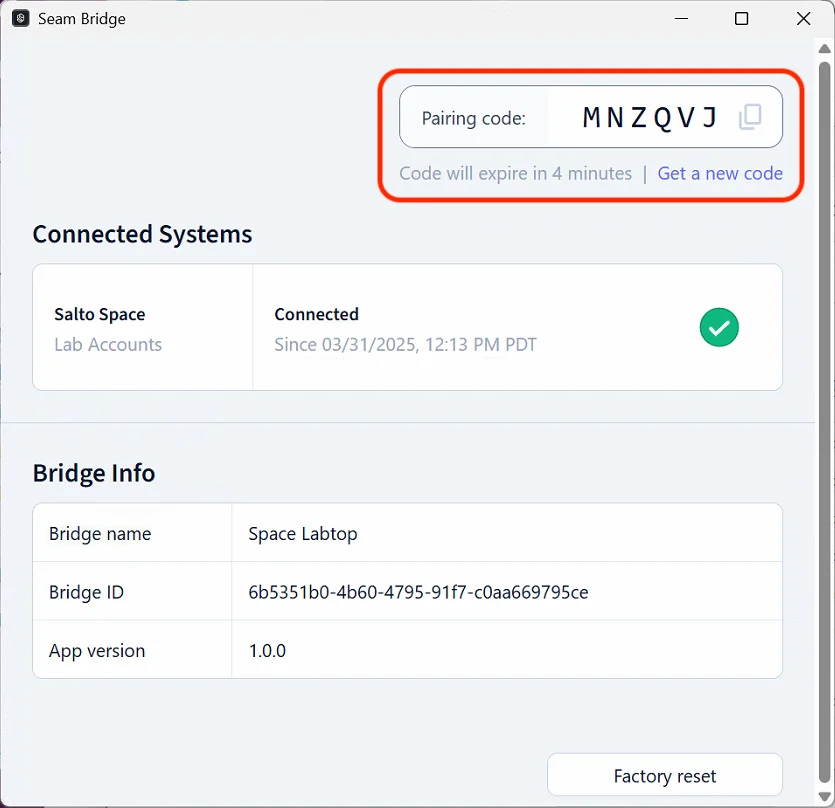
3. Seam Bridge displays a **Pairing code.** Use this code when connecting Seam Bridge to your workspace. Return to this window whenever a new pairing code is requested.
   <img src="https://mintcdn.com/seam-feat-mintlify-migration-iteration/ttptfiJo49nVq_Qy/images/bridge.png?fit=max&auto=format&n=ttptfiJo49nVq_Qy&q=85&s=4beb8a967582013e4e68204ed1931b7c" alt="" width="835" height="808" data-path="images/bridge.png" />

***

### Set up Seam Bridge to reboot on restarts

Use `launchd` to keep the Seam Bridge running on macOS. A LaunchAgent restarts the app if it crashes and starts it whenever the user logs in.

#### Create and Launch the LaunchAgent file

1. Open **Terminal**.

2. Create a plist file in your user `LaunchAgents` directory:

   ```bash theme={null}
   mkdir -p ~/Library/LaunchAgents
   nano ~/Library/LaunchAgents/com.seambridge.keepalive.plist
   ```

3. Paste this template:

   ```xml theme={null}
   <?xml version="1.0" encoding="UTF-8"?>
   <!DOCTYPE plist PUBLIC "-//Apple//DTD PLIST 1.0//EN" "http://www.apple.com/DTDs/PropertyList-1.0.dtd">
   <plist version="1.0">
     <dict>
       <key>Label</key>
       <string>com.myapp.keepalive</string>

       <key>ProgramArguments</key>
       <array>
         <string>/path/to/app/SeamBridge.app/Contents/MacOS/SeamBridge</string>
       </array>

       <key>KeepAlive</key>
       <true/>

       <key>RunAtLoad</key>
       <true/>
     </dict>
   </plist>

   ```

4. Replace `/path/to/app` with the actual path to your binary/script. Keep the `/Contents/MacOS/SeamBridge` path at the end.

5. To save your changes in Nano:
   * `Ctrl X` to Exit.
   * `Y` to save changes.
   * Confirm the file name and click **Enter**.

6. Within terminal, paste the following command to launch the launch agent:

   ```bash theme={null}
   launchctl load ~/Library/LaunchAgents/com.seambridge.keepalive.plist
   ```

#### Test the setup

1. Kill the app manually.
2. `launchd` should restart it automatically.
3. Restart your Mac and confirm the app launches on login.

#### Prevent sleep from killing your app

1. Go to **System Settings** → **Battery**.
2. Set **Turn display off** as desired but disable **sleep while plugged in**.

***
