> ## Documentation Index
> Fetch the complete documentation index at: https://seam-feat-mintlify-migration-iteration.mintlify.site/llms.txt
> Use this file to discover all available pages before exploring further.
# Seam Bridge Setup for Windows
> Step-by-step instructions for installing, launching, and configuring Seam Bridge on Windows.
### System Requirements
* **Supported versions:**
* Windows 10/11 AMD64/ARM64
* **Minimum hardware:**
* 1 GB RAM
* \~150 MB disk space
* x64 architecture
* **Network:** LAN connection required
***
## Run Seam Bridge
### Launch the app and allow required permissions
1. Open the downloaded executable file.
2. If you are using a Windows computer running Microsoft Defender, you may need to allow Windows to run the Seam Bridge app.
1. In the **Windows protected your PC** dialog, click **More info**.
2. Click **Run anyway**.
3. If you are using a Windows computer, you may need to allow public networks to access the Seam Bridge app.
1. In the **Do you want to allow public and private networks to access this app?** dialog, click **Show more**.
2. Make sure that the **Public networks** and **Private networks** checkboxes are selected.
3. Click **Allow**.
4. The Seam Bridge app will launch.
***
### Complete Seam Bridge setup
1. Accept the **Terms of Service.**
2. Enter a name for the site that you are connecting using Seam Bridge—for example, `My Site`—and then click **Start pairing**.
3. Seam Bridge displays a **Pairing code.** Use this code when connecting Seam Bridge to your workspace. Return to this window whenever a new pairing code is requested.
***
### Set up Seam Bridge to Reboot on Restart
Use Task Scheduler to auto-start your app and restart it if it fails.
#### **Open Task Scheduler**
1. Press **Win** key and type **Task Scheduler**.
2. Open **Task Scheduler**.
#### **Create a new task**
1. In the right-hand **Actions** pane, select **Create Task…** (not *Create Basic Task*).\\
2. In the **General** tab:
* Name: e.g. `Seam Bridge - Keep Running`.
* (Recommended) Check **Run when user is logged on.**
* (If needed) Check **Run with highest privileges**.
* Pick the right OS under **Configure for** (e.g. Windows 10/11).\\
3. **Set up trigger to launch at start up**
* Go to the **Triggers** tab and click **New….**
* Set **Begin the task** to **At startup**.
* Make sure **Enabled** is checked, then click **OK**.
4. **Add another trigger to relaunch Seam Bridge if it closes**
1. In the **Triggers** tab, select **New…**
2. Set **Begin the task** to **On a schedule**
3. Under **Settings**, select:
* Daily
* Recur every: 1 day
4. Under **Advanced settings**, enable:
* **Repeat task every:** 5 minutes
* **For a duration of:** 1 day
* Ensure **Enabled** is checked
5. Select **OK** to save the trigger.
5. **Configure launching the Seam Bridge app**
* Go to the **Actions** tab and click **New….**
* Set **Action** to **Start a program**.
* In **Program/script**, select your app’s .exe or script:
* Example: `C:\Users\user\Downloads\SeamBridge.exe`
* Click **OK**.
6. **Configure settings for relaunching**
1. Go to the **Settings** tab.
2. Enable:
* **Allow task to be run on demand**.
* **If the task fails, restart every:** `1 minute`, for a duration of: `Indefinitely` or a reasonable number of attempts (> 100).
3. Uncheck **Stop the task if it runs longer than:**.
4. Check **If the running task does not end when requested, force it to stop**.
7. **Prevent power settings from stopping the task**
* Go to the **Conditions** tab.
* If this is a plugged-in machine (kiosk/server style):
* Uncheck **Start the task only if the computer is on AC power**.
* Uncheck **Stop if the computer switches to battery power**.
#### **Save and test**
1. Click **OK** to save the task.
2. If prompted, enter the user's password so Windows can run it in the background.
3. In Task Scheduler, right-click your new task and select **Run**.
4. Confirm the app starts as expected.
5. Restart the computer and verify the app launches automatically.
***

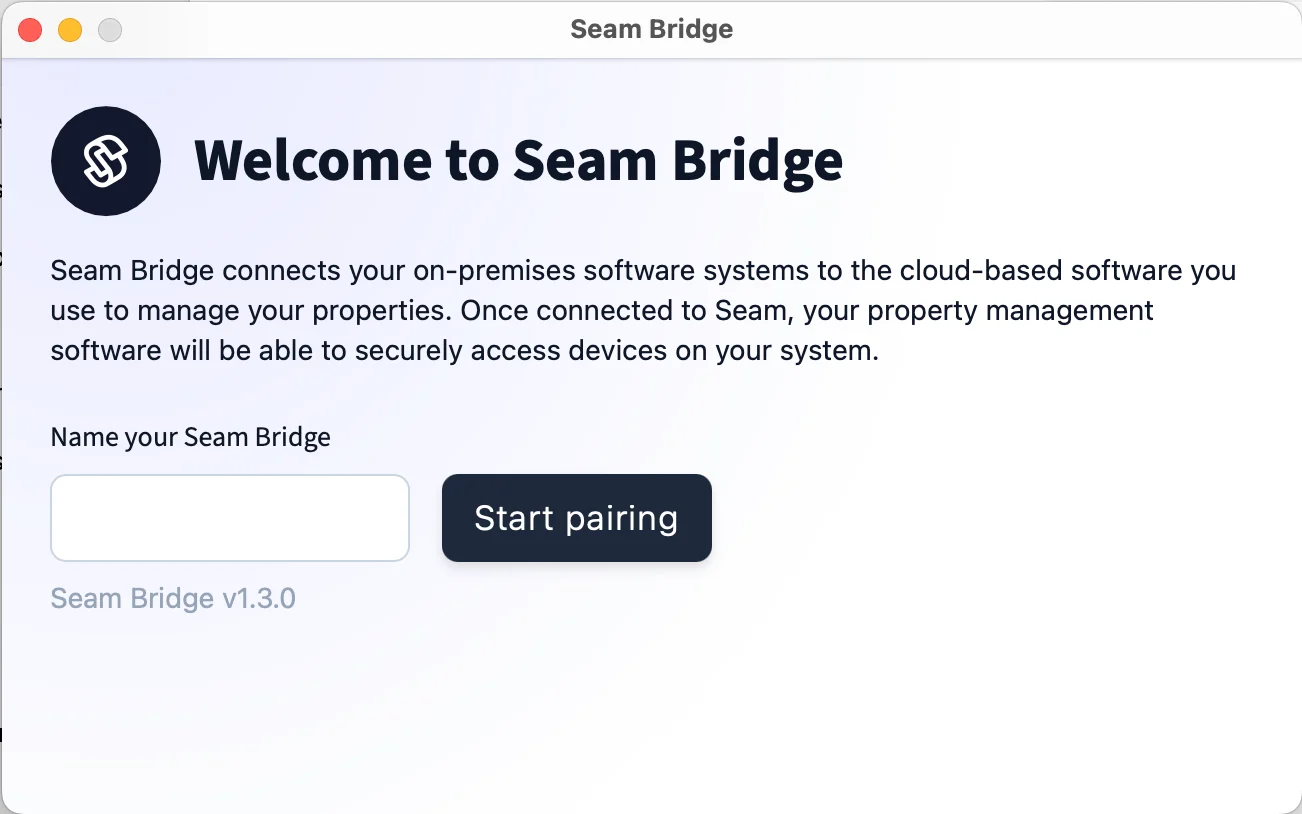 3. Seam Bridge displays a **Pairing code.** Use this code when connecting Seam Bridge to your workspace. Return to this window whenever a new pairing code is requested.
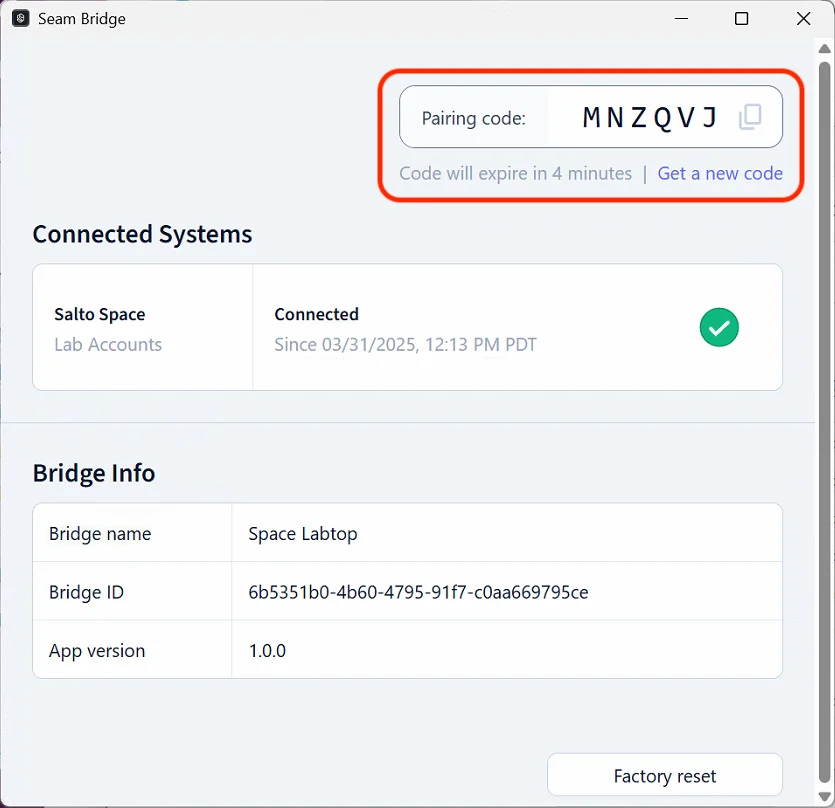 ***
### Set up Seam Bridge to Reboot on Restart
Use Task Scheduler to auto-start your app and restart it if it fails.
#### **Open Task Scheduler**
1. Press **Win** key and type **Task Scheduler**.
2. Open **Task Scheduler**.
#### **Create a new task**
1. In the right-hand **Actions** pane, select **Create Task…** (not *Create Basic Task*).\\
***
### Set up Seam Bridge to Reboot on Restart
Use Task Scheduler to auto-start your app and restart it if it fails.
#### **Open Task Scheduler**
1. Press **Win** key and type **Task Scheduler**.
2. Open **Task Scheduler**.
#### **Create a new task**
1. In the right-hand **Actions** pane, select **Create Task…** (not *Create Basic Task*).\\


