> ## Documentation Index
> Fetch the complete documentation index at: https://seam-feat-mintlify-migration-iteration.mintlify.site/llms.txt
> Use this file to discover all available pages before exploring further.
# Step 7: Create a Production Workspace
> Learn how to create a production workspace to help you develop and test your Visionline plastic card encoding app.
Create a Seam production workspace to connect your Visionline account to Seam. You can continue to use this workspace in your production phase as well.
1. Log in to [Seam Console](https://console.seam.co/).
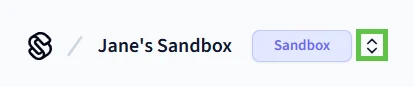
2. In the upper-left corner, click the workspace switcher.
 3. Click **New Workspace**.
4. In the **Add a Workspace** dialog, type a name for your new workspace and your company name.
5. Disable **Sandbox mode**.
3. Click **New Workspace**.
4. In the **Add a Workspace** dialog, type a name for your new workspace and your company name.
5. Disable **Sandbox mode**.
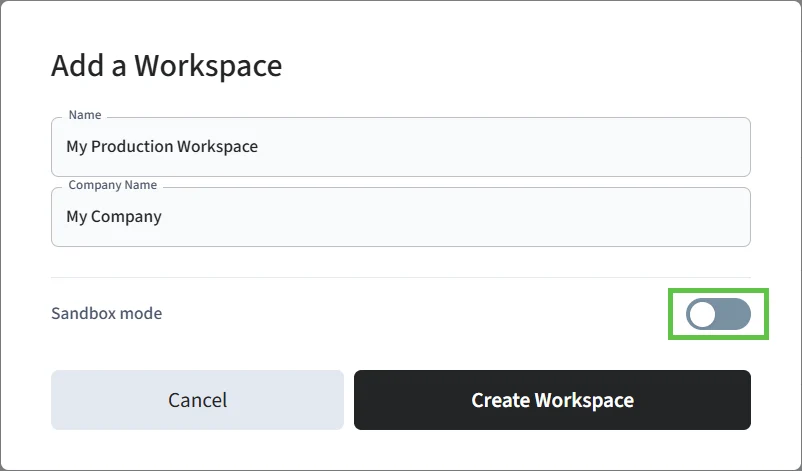 6. Click **Create Workspace**.