> ## Documentation Index
> Fetch the complete documentation index at: https://seam-feat-mintlify-migration-iteration.mintlify.site/llms.txt
> Use this file to discover all available pages before exploring further.

# Connect an Access System to Seam

> Learn how to connect your access system to Seam.
You can use [Seam Console](/core-concepts/seam-console/index) or the [Seam API](/api/connect_webviews/object) to connect your access system to Seam. You use a [Connect Webview](/core-concepts/connect-webviews/index) to authorize the connection.

## Connect an Access System Using Seam Console

1. Log in to [Seam Console](https://console.seam.co/).

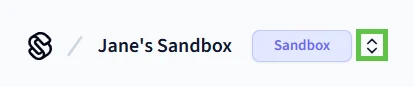
2. In the upper-left corner, click the workspace switcher and select or create a [workspace](/core-concepts/workspaces/index).

   To connect a real access system to Seam, use a production workspace. To use one of Seam's [virtual access systems](/device-and-system-integration-guides), use a [sandbox workspace](/core-concepts/workspaces/index#sandbox-workspaces).

   <img src="https://mintcdn.com/seam-feat-mintlify-migration-iteration/N2WzR-0uAm5pfjdF/images/workspace-switcher.png?fit=max&auto=format&n=N2WzR-0uAm5pfjdF&q=85&s=69cb6faacd1569a5f973aab02ed7d260" alt="Use the Seam Console workspace switcher to switch between workspaces and create new workspaces." width="414" height="87" data-path="images/workspace-switcher.png" />

3. In the top navigation pane, click **ACS Systems**.

4. On the **Access Systems** page, click **New Access System**.

   Seam Console displays a Connect Webview that enables you to connect your access system to Seam.

5. In the Connect Webview, follow the prompts to authorize the connection.

   <figure>
     <img src="https://mintcdn.com/seam-feat-mintlify-migration-iteration/vBZrgRoLNEvFJtz0/images/salto-webview.webp.png?fit=max&auto=format&n=vBZrgRoLNEvFJtz0&q=85&s=7089dea76353b666f2fcc1589b2f5bfd" alt="Use a Connect Webview to connect your access system to Seam." width="2000" height="813" data-path="images/salto-webview.webp.png" />

     <figcaption>
       <p>Use a Connect Webview to connect your access system to Seam.</p>
     </figcaption>
   </figure>

   If you want to connect a virtual access system to a sandbox workspace, use the corresponding [sandbox access system credentials](/device-and-system-integration-guides).

   To connect a real access system, see the [system integration guide](/device-and-system-integration-guides#access-control-systems) for your ACS to learn any brand- or system-specific prerequisites, requirements, and restrictions.

The **Access Systems** page now displays the newly-connected access control system.

***

## Connect an Access System Using the Seam API

First, use the Seam API to [create a Connect Webview](/api/connect_webviews/create). Then, display this Connect Webview to your user. You user completes the Connect Webview to authorize the access system connection to Seam.

For detailed instructions, see [Connect Webview Process](../../../core-concepts/connect-webviews/connect-webview-process).
