

System Requirements
Supported distributions
Ubuntu, Debian, Fedora, Arch, OpenSUSE, and most Linux desktops that include WebKitGTK.Runtime dependencies
WebKitGTK 3 or 4-
Check if installed:
-
If not installed, the user must install (depending on distro):
-
Ubuntu/Debian
-
Fedora
-
Arch
-
Ubuntu/Debian
Minimum hardware
- 1 GB RAM
- ~150 MB disk space
- x64 architecture
- LAN Network access
Run Seam Bridge
Launch the app and allow required permissions
- Open the downloaded Seam Bridge file.
-
If it does not open, you may need to mark it as executable.
-
Launch the app:
-
If the app does not start due to permissions, you may need to allow it through your system’s security settings:
- Some Linux distributions block files downloaded from the internet.
-
If this happens, remove the quarantine attribute (if present):
- If your Linux system prompts you to allow the app to access the network, approve the request so Seam Bridge can connect to your on-premises system.
- Seam Bridge will launch.
Complete Seam Bridge setup
- Accept the Terms of Service.
-
Enter a name for the site that you are connecting using Seam Bridge—for example,
My Site—and then click Start pairing.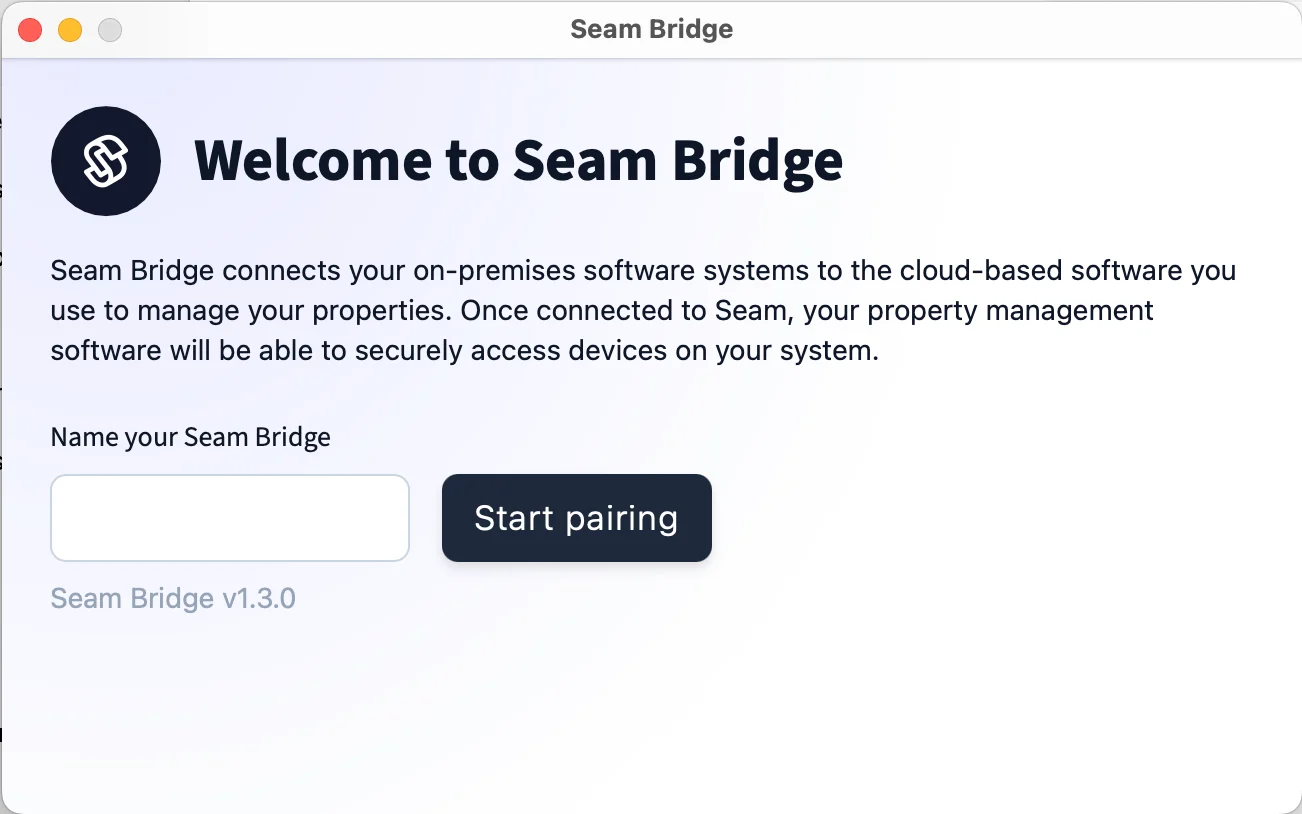
-
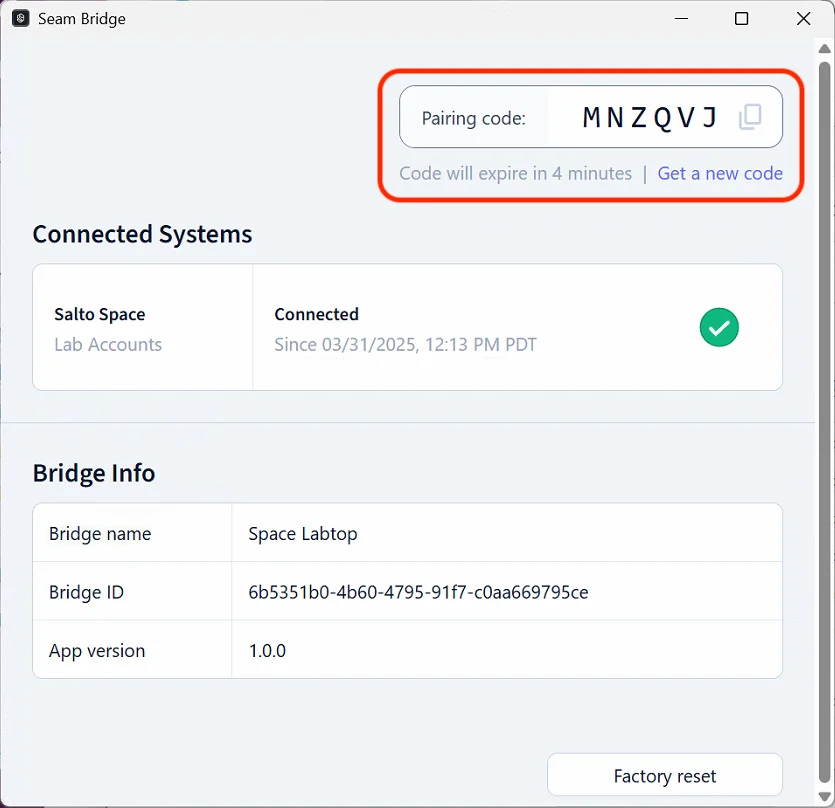
Seam Bridge displays a Pairing code. Use this code when connecting Seam Bridge to your workspace. Return to this window whenever a new pairing code is requested.
Set up Seam Bridge to reboot on restart
Usesystemd to keep an app running on Linux. It supervises the process, restarts it on crash, and handles boot startup.
Create a systemd service file
- Open Terminal.
-
Create the service file:\
-
Add this template:
-
Replace paths and
Useras needed.
Enable and start the service
- Within Terminal, run the following commands:
Verify status
- Run the following command in Terminal to confirm that the service is running:
Test auto-restart
- Kill the process manually with
pkill SeamBridge. systemdshould restart it immediately.