

System Requirements
- Supported versions:
- macOS 10.13 High Sierra or later
- Intel and Apple Silicon supported
- Minimum hardware
- 1 GB RAM
- ~200–300 MB disk space depending on bundle size
- Network: LAN connection required
Run Seam Bridge
Unzip and launch the app
- Double click on the zipped file to unzip the file.
- Try opening the SeamBridge.app by double-clicking it.
- macOS will show a “Seam Bridge” Not Opened dialog.\
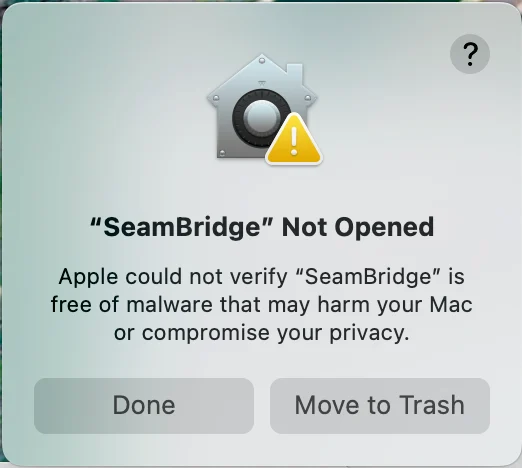
- Select Done to close the dialog.
Approve the app in System Settings
- Open System Settings.
- Go to Privacy & Security.
- Scroll to the bottom of the page.
- Look for a message that says:
- “Seam Bridge was blocked to protect your Mac.”
- Select Open Anyway.
- Select Open Anyway in the popup.
Complete Seam Bridge setup
- Accept the Terms of Service.
-
Enter a name for the site that you are connecting using Seam Bridge—for example,
My Site—and then click Start pairing.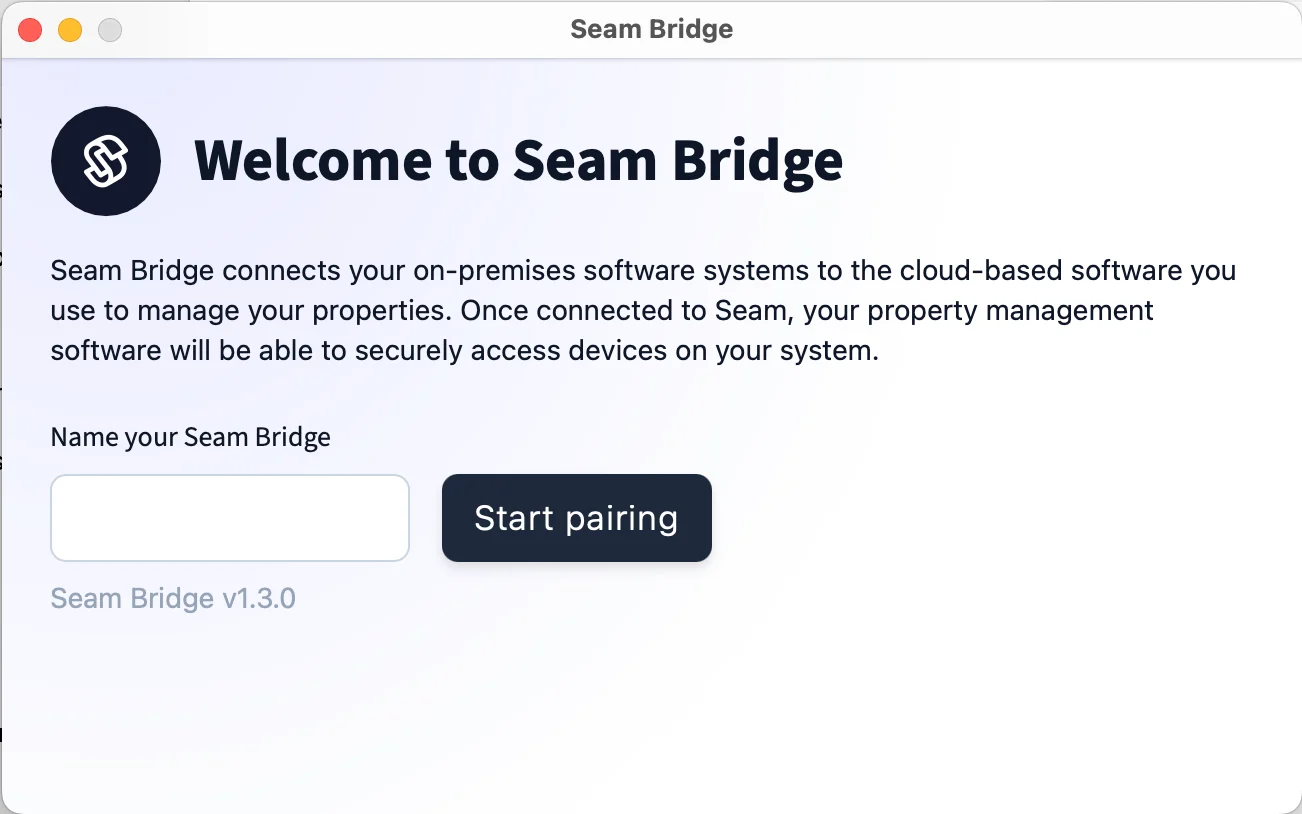
-
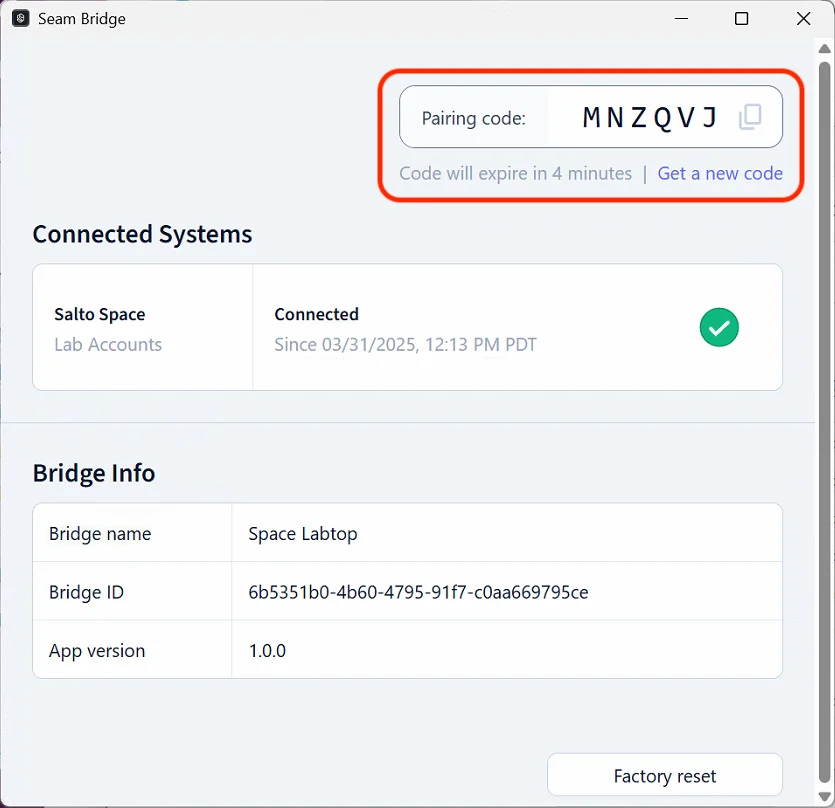
Seam Bridge displays a Pairing code. Use this code when connecting Seam Bridge to your workspace. Return to this window whenever a new pairing code is requested.
Set up Seam Bridge to reboot on restarts
Uselaunchd to keep the Seam Bridge running on macOS. A LaunchAgent restarts the app if it crashes and starts it whenever the user logs in.
Create and Launch the LaunchAgent file
- Open Terminal.
-
Create a plist file in your user
LaunchAgentsdirectory: -
Paste this template:
-
Replace
/path/to/appwith the actual path to your binary/script. Keep the/Contents/MacOS/SeamBridgepath at the end. -
To save your changes in Nano:
Ctrl Xto Exit.Yto save changes.- Confirm the file name and click Enter.
-
Within terminal, paste the following command to launch the launch agent:
Test the setup
- Kill the app manually.
launchdshould restart it automatically.- Restart your Mac and confirm the app launches on login.
Prevent sleep from killing your app
- Go to System Settings → Battery.
- Set Turn display off as desired but disable sleep while plugged in.